One calm step
at a time.
Short answers with pictures. Read only what you need. Tap any ? in the app for the same kind of help.
Your first five minutes
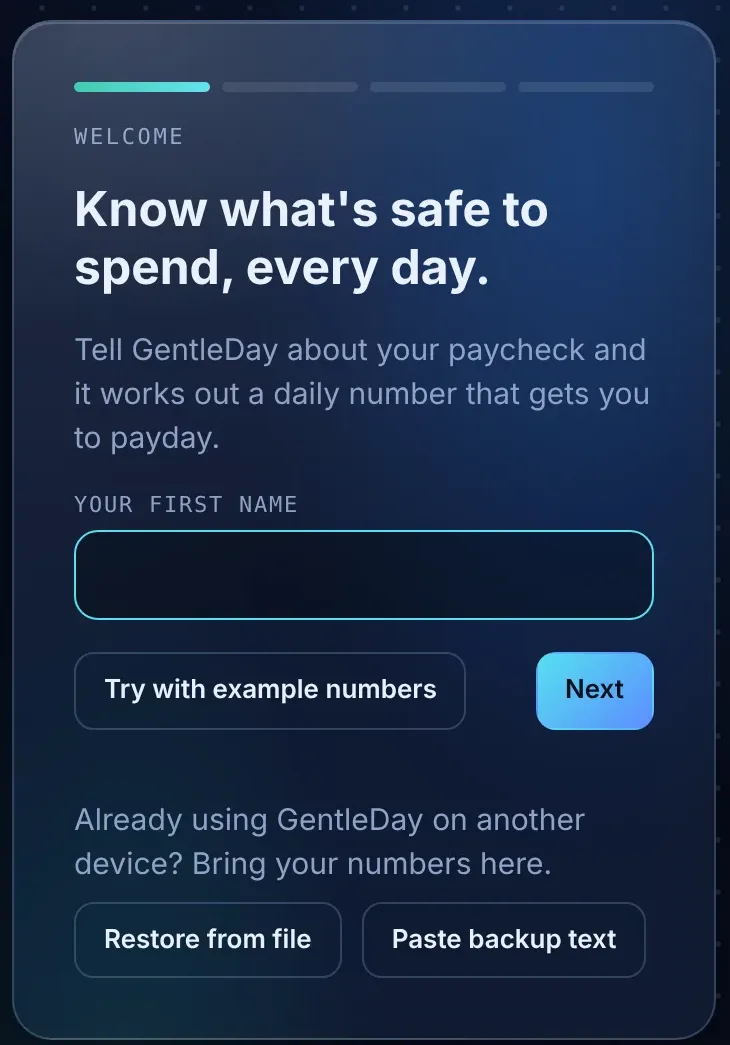
Three quick questions, and your daily number is ready. No spreadsheet, no bank login.
- Type your first name.
- Add your paycheck: how much lands in your account, and how often.
- Pick your next payday. GentleDay works out the rest.
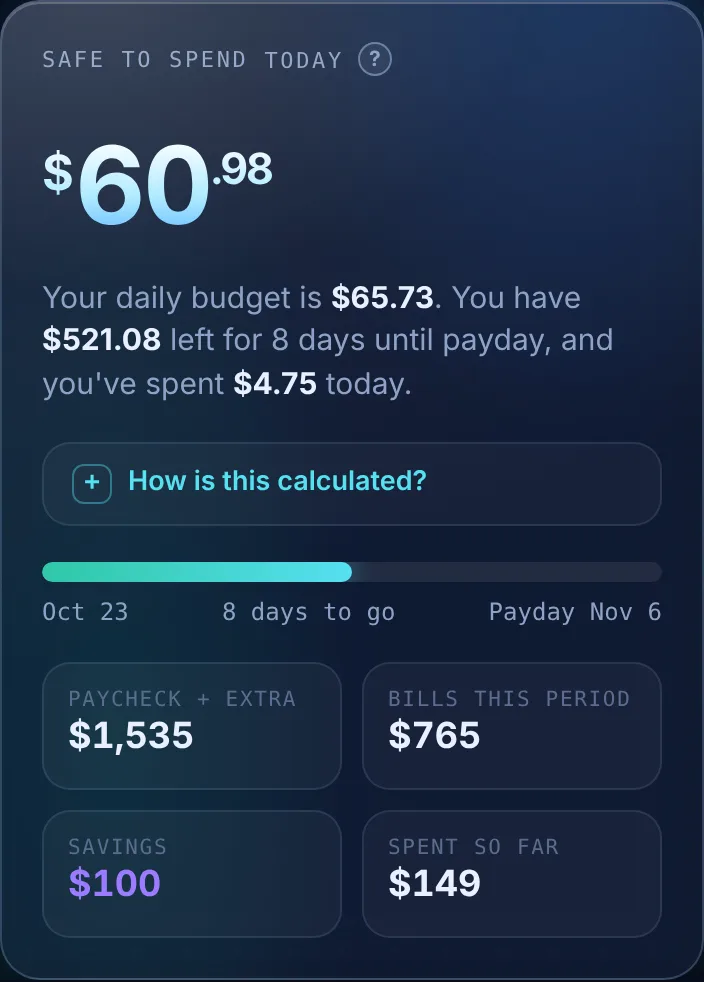
Safe to spend today
What you can spend today and still be okay until payday. Bills and savings are already covered.
- Glance at it before you buy.
- Tap How is this calculated? to see every step.
- The bar shows how many days are left until payday.
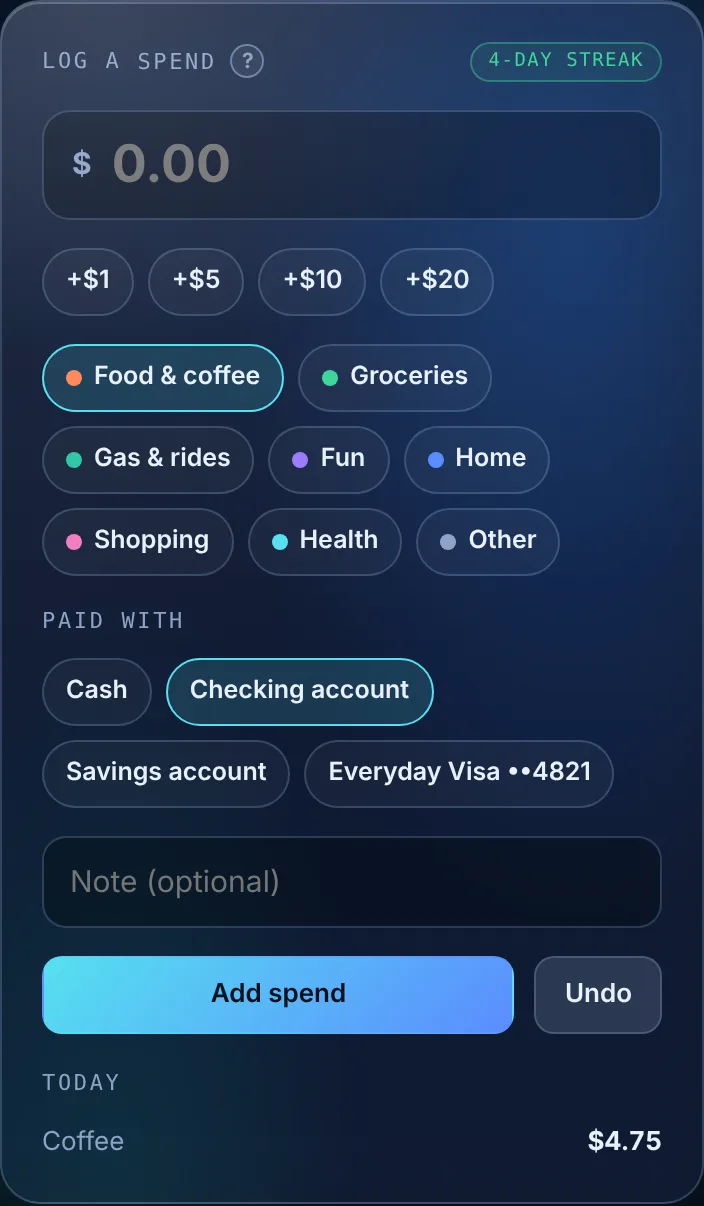
Log a spend
Two taps, and today’s number updates right away.
- Type the amount, or tap a quick amount like +$5.
- Tap what it was for, like Groceries.
- Choose how you paid, then tap Add spend.
Every bill you owe
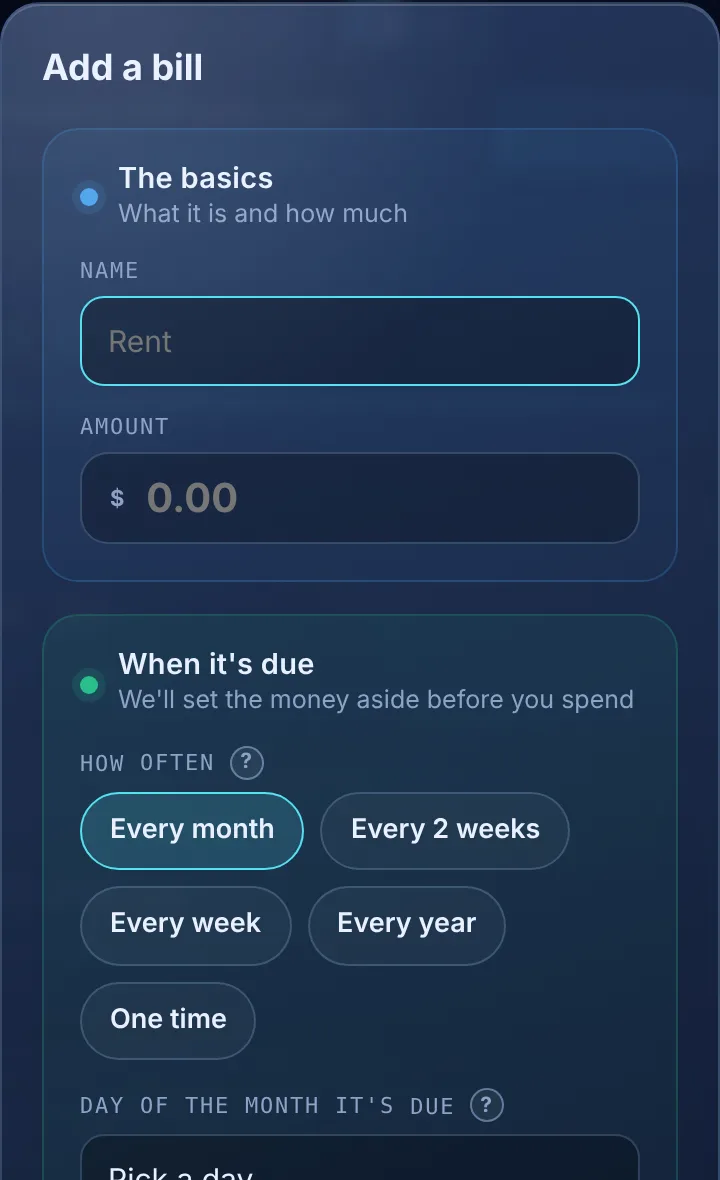
Add a bill once, and GentleDay sets the money aside before you spend.
- Go to Bills and tap Add a bill.
- Add the name, amount and due day.
- Choose Auto-pay if it pays itself, or I pay it myself.
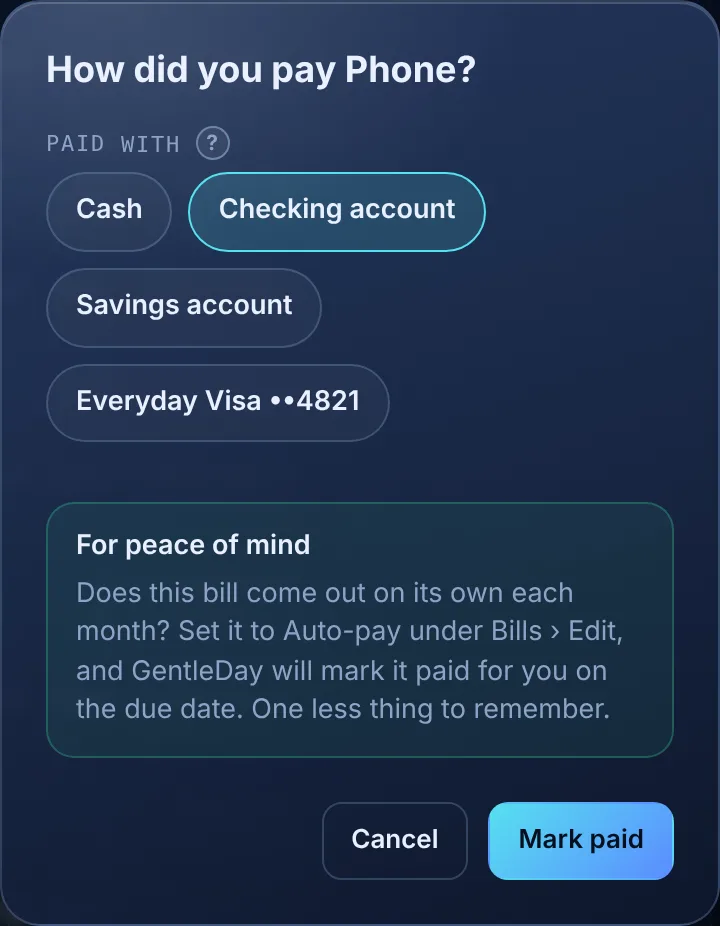
- Paid one yourself? Tap Mark paid and choose how you paid.
Coming up and Right now
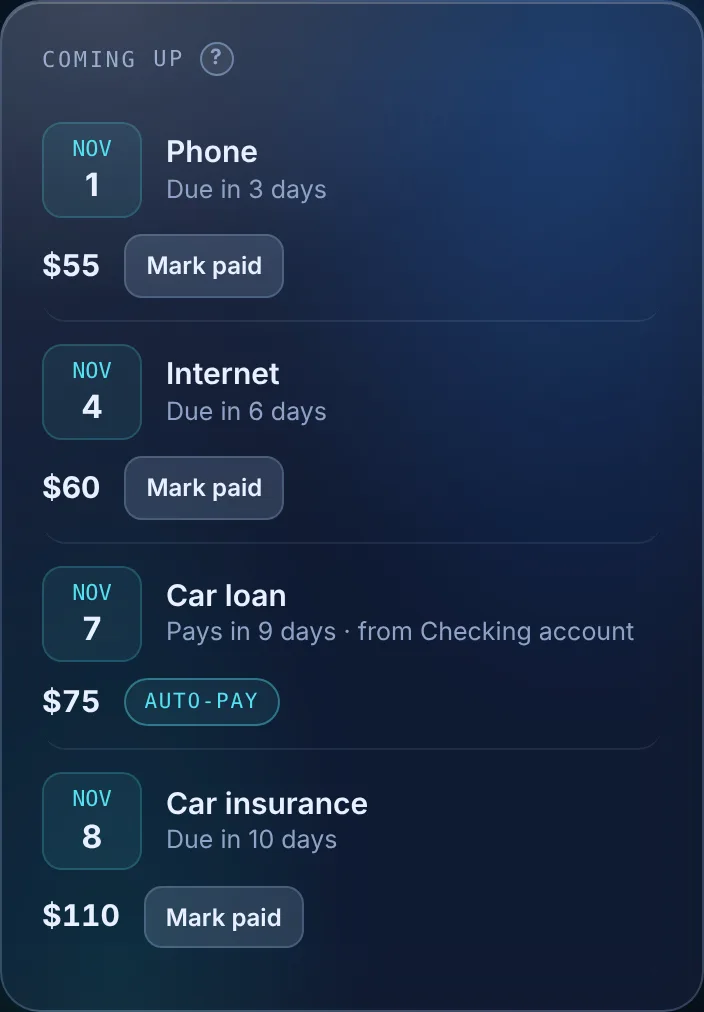
Coming up lists your next bills. Right now shows the one thing that matters today, and gently lets you know when an auto-payment went out.
- Paid items stay for 24 hours with Undo.
- Turn the Right now card off in Settings › Daily coach.
Your month on one calendar
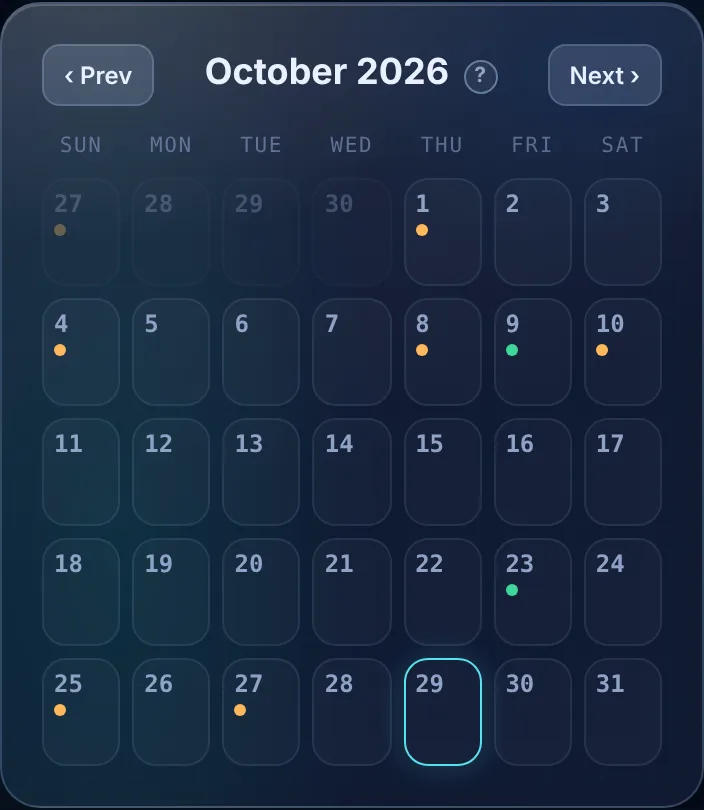
A green dot is a payday. An orange dot is a bill. Today has a bright outline.
- Tap any day to see what’s on it.
- Use Prev and Next to move between months.
- Forgot to log something? Tap the day, then Spend on this day.
Extra income
Tips, side jobs, gifts and refunds. Your regular paycheck is set in Settings.
- Tap Add income and choose if it has arrived.
- Still waiting? It isn’t counted yet.
- When it shows up, tap It arrived.

Saving for something
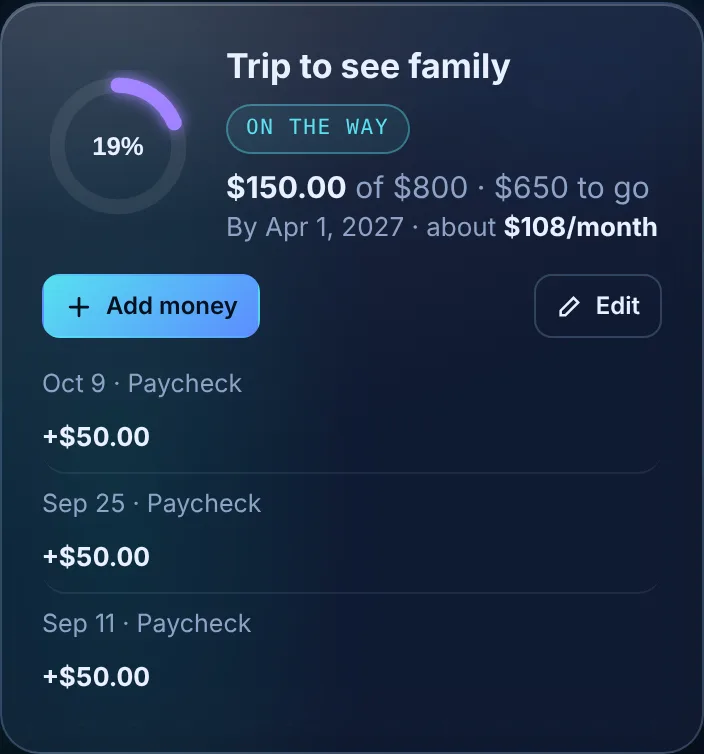
Big or small: an emergency fund, a trip, a new phone.
- Tap New goal, then give it a name and a target.
- Tap Add money from your paycheck, or mark money already in savings.
- Watch the ring fill up.
A gentle limit
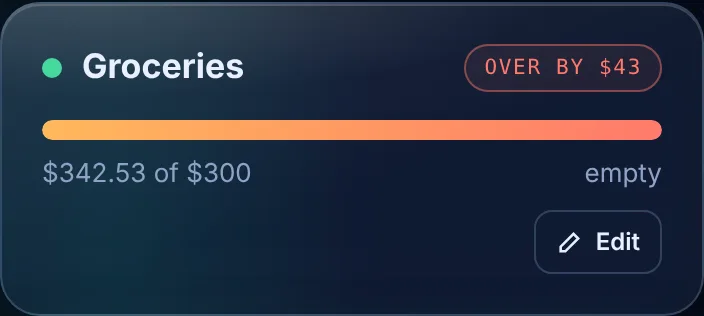
Give one kind of spending a monthly limit, like groceries.
- Tap Add an envelope and pick a category.
- Set the most you’d like to spend in a month.
- The bar shows what’s left, and about how much per day.
Paying it down
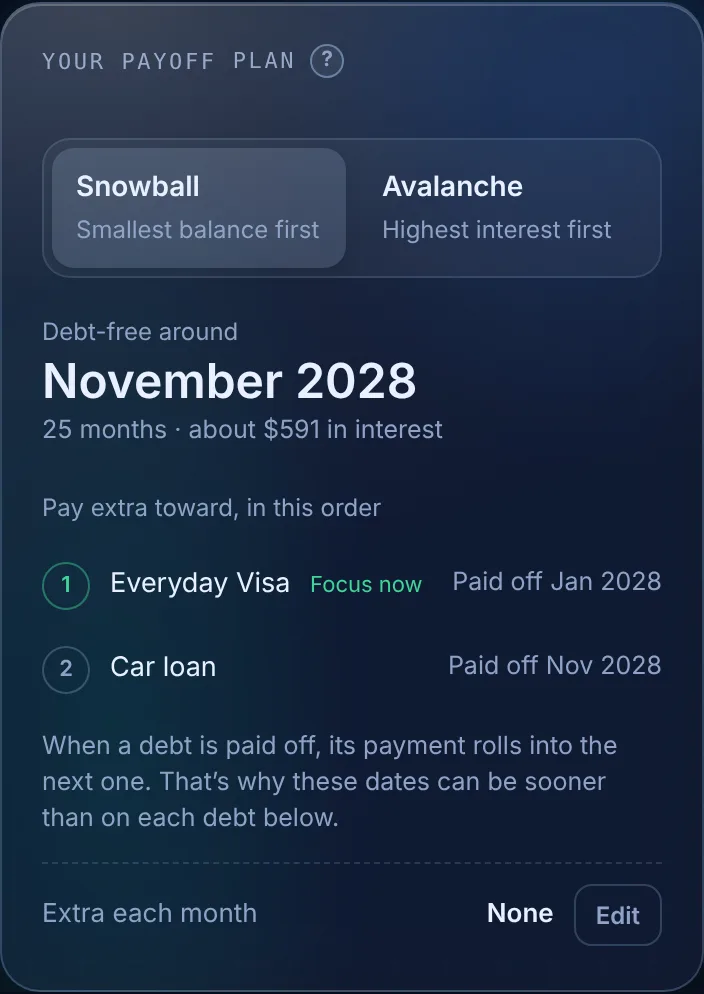
Track one debt or many, or skip this screen. It’s up to you.
- Tap Add a debt: a credit card, a car loan, or anything else.
- Record payments, or turn on auto-pay.
- Have 2 or more? Pick Snowball (smallest first) or Avalanche (highest interest first).
Accounts and moving money
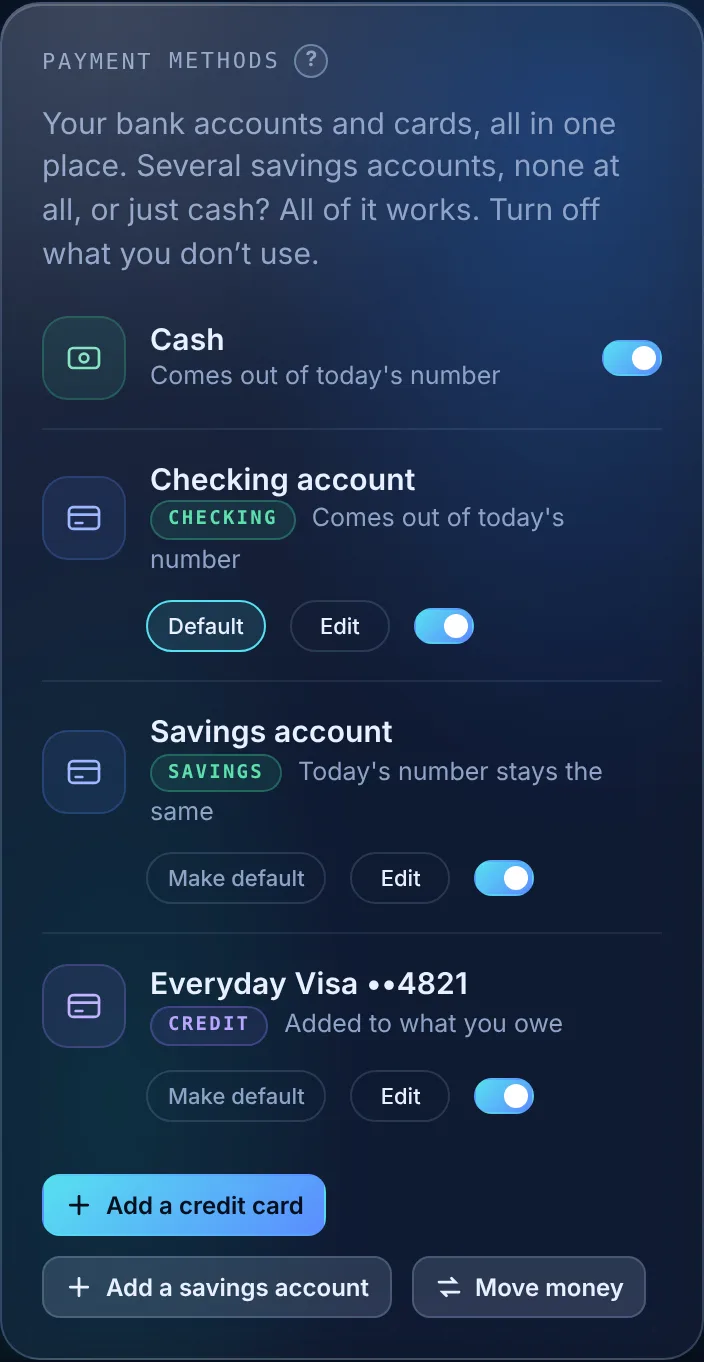
Your checking, savings and credit cards in one place. A rough balance is fine.
- Go to Settings › Payment methods.
- Tap Edit to add a rough balance.
- Tap Move money to move your own money between accounts.
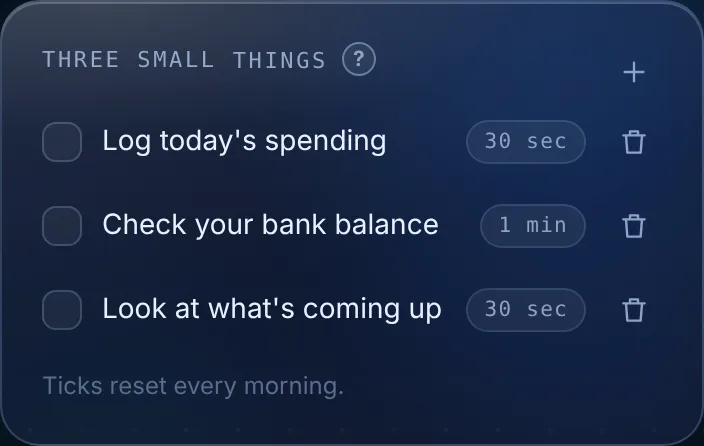
Three small things
Small, easy habits to tick off each day. They reset every morning.
- Tick one when it’s done.
- Tap + to add your own.
One planner.
Every device.
Log a coffee on your phone, see it on your computer. Your numbers are locked on your device before they travel, so no one else can read them. Not even us.
On the device that has your numbers
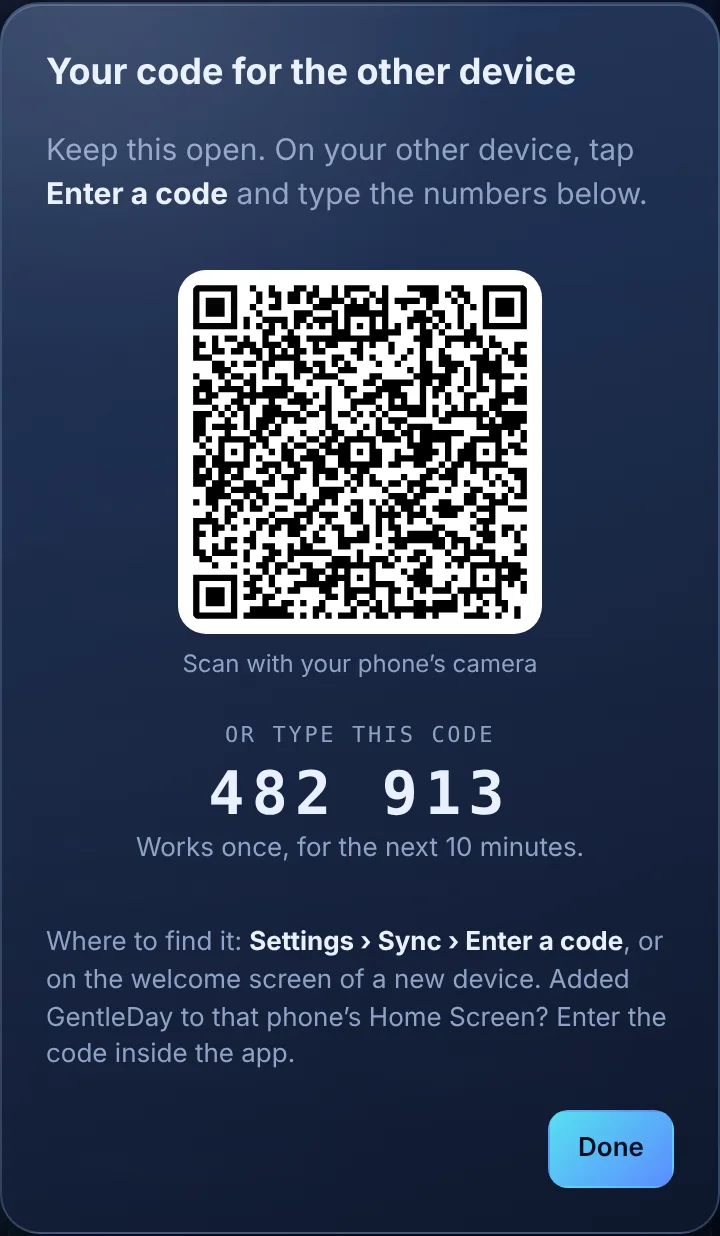
Go to Settings › Sync and tap Show a code. Keep the window open.
On your other device
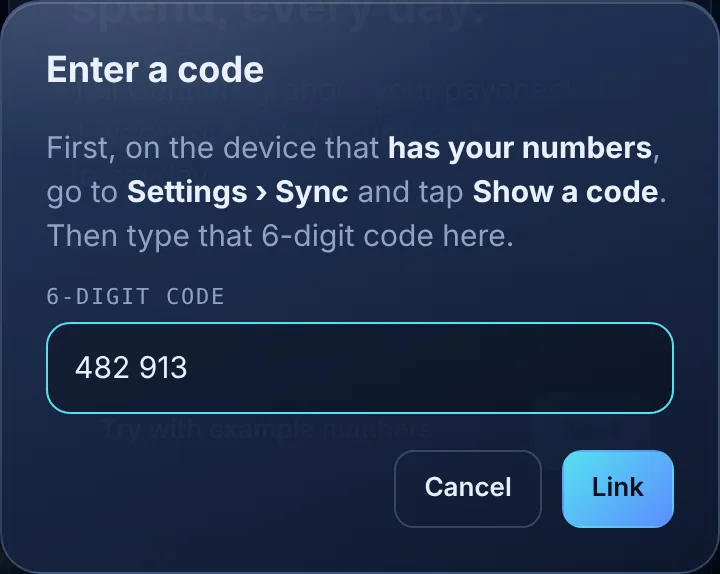
Open GentleDay, tap Enter a code and type the 6 digits. On a new device, the button is right on the welcome screen.
Good to know
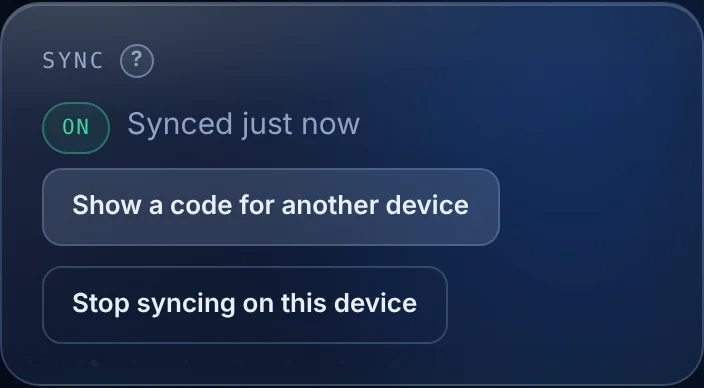
- One code links one device. Want a third? Tap Show a code for another device again.
- Each code works once, for 10 minutes.
- Linking replaces the numbers on the new device with your planner, so always show the code on the device that has your numbers.
- iPhone: enter the code inside the Home Screen app, not in Safari. They keep separate copies.
- Want to stop? Settings › Sync › Stop syncing on this device. Your numbers stay on that device.
Backups and new devices
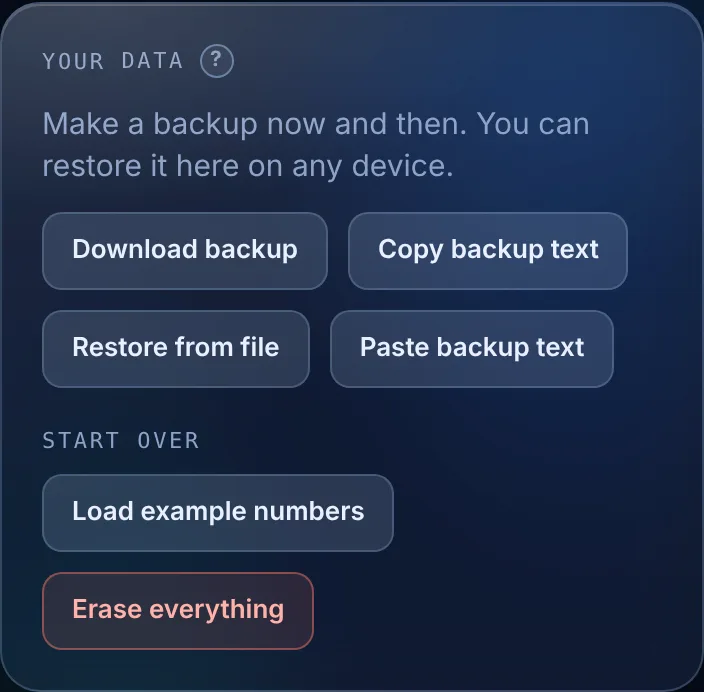
Everything is saved on your device. A backup keeps a copy safe, in case you lose your phone or clear your browser.
- Go to Settings › Your data and tap Copy backup text.
- Paste it into Notes or an email to yourself.
- On a new device, tap Paste backup text on the welcome screen, then Restore.
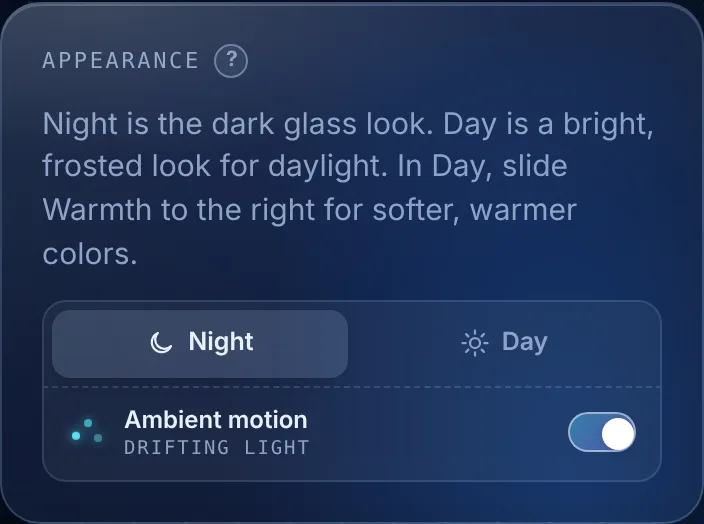
Day, Night and Warmth
Pick the look that’s easiest on your eyes. In Day, slide Warmth for softer colors.
- Find it under Settings › Appearance.
- Turn Ambient motion off for a still background.
- Tap Hints at the top to turn the ? tips on or off.